Supervaize MCP: connect Claude or ChatGPT
Ask your chat assistant what your agents are doing, unblock them, and launch new work, without leaving the conversation. The Supervaize MCP connector gives Claude and ChatGPT access to one Studio workspace, with your own roles and nothing more.
Illustrative replay with fictional data. Wording varies between chats; the tools are the real ones.
- One URL, no API key. You paste a workspace URL and sign in. There is no secret to copy or rotate.
- Your permissions, exactly. Every call runs as you. A read-only member cannot write; you only see missions you already see in Studio.
- Revocable in one click. Disconnect from your profile and the next call fails immediately.
Install in four steps
Try the flow here first. The buttons work.
Interactive walkthrough with a fictional workspace. Click the buttons.
1. Copy your workspace URL
In Studio, open the Help menu (the ? at the bottom of the sidebar) and choose Use Supervaize in Claude / ChatGPT. Copy the URL shown. It looks like this:
https://app.supervaize.com/mcp/<your-workspace>
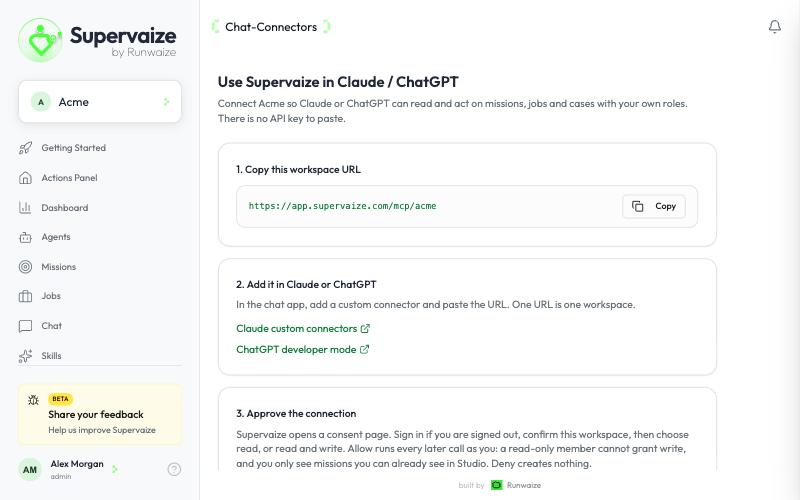
One URL is one workspace. The same URLs are also listed under Profile → Developer → Chat connectors (MCP).
2. Add it in your chat app
Add a custom connector and paste the URL, with no trailing slash.
- Claude (claude.ai and Claude Desktop): Get started with custom connectors
- ChatGPT (developer mode): MCP in ChatGPT
In Claude's Add custom connector dialog, use these settings:
| Setting | Value |
|---|---|
| URL | https://app.supervaize.com/mcp/<your-workspace> |
| Authentication | Sign in now |
| OAuth client | Use Claude's published identity |
| Client ID / secret | Leave empty |
| Request headers | None |
:::warning Do not pick "Register automatically" Supervaize does not offer dynamic client registration, so that option fails. Keep Use Claude's published identity. :::
3. Approve the connection
Supervaize opens a consent page. Sign in if you are signed out, confirm the workspace, then choose the permissions:
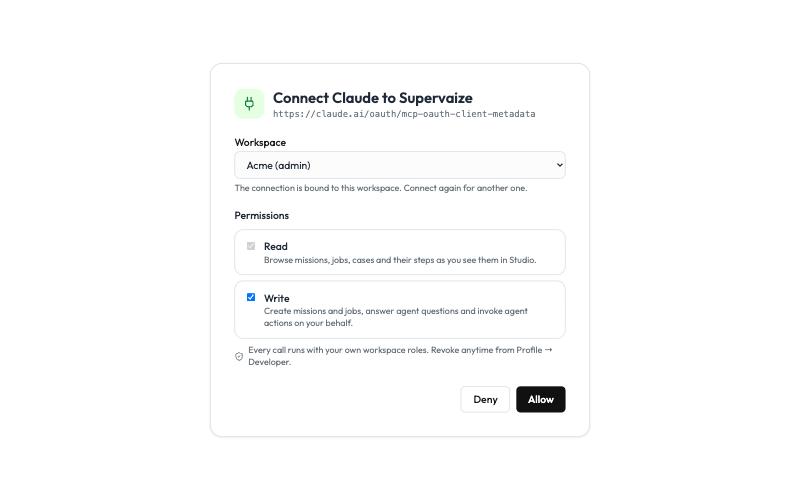
| Permission | What the assistant can do |
|---|---|
| Read (always on) | Browse missions, jobs, cases and their steps as you see them in Studio. |
| Write (optional) | Create missions and jobs, answer agent questions and invoke agent actions on your behalf. |
Click Allow. Deny creates nothing.
:::info Runs with your roles Granting Write never gives the assistant more than you have. If you are a read-only member, write calls are refused whatever you tick here. :::
4. Disconnect when you want
After Allow, the app is listed under Profile → Developer → Connected apps, with the workspace, the granted permissions and the last use. Disconnect revokes it immediately; the next call from Claude or ChatGPT fails until you connect again.
Check that it works
Open a new chat and ask:
What is running in my Supervaize workspace?
The assistant should call workspace_info and mission_list, then answer with your workspace name, your role and your missions. Next: see what you can do with it.
Troubleshooting
| Symptom | Cause | Fix |
|---|---|---|
invalid_target while connecting | The URL does not match the workspace URL exactly | Paste the URL as copied from Studio, without a trailing slash |
| Consent page says the request expired | The page stayed open more than 10 minutes | Start the connection again from the chat app |
| Calls fail after working before | The app was disconnected, or unused for 30 days | Reconnect from the chat app |
| "Token was issued for another workspace" | One connection is one workspace | Add a second connector with the other workspace URL |
| A write is refused | You did not grant Write, or your Studio role does not allow it | Reconnect with Write, or ask a workspace admin |