Job Configurator: build the Configure screen
The Configure tab of a job in Studio is drawn from a document that your agent returns. Your agent owns the vocabulary, the fields, the validation and the state. Studio owns the rendering, the navigation, the permissions and the audit trail.
A campaign agent, for example, shows Campaign setup with the tabs Parameters, Participants, Scenario, Review & launch and Links & exports. Each tab is one section of the document, and each section holds one component from Studio's catalog.
The Hello World example implements everything on this page in agent_configurator.py (about 230 lines), with tests in tests/test_configurator.py.
Install the Supervaizer integration skill in your coding agent, open your agent project and ask:
Add a Configure screen to the jobs of this agent.
The skill asks you the design questions, then follows this guide and the Hello World example, with tests. The rest of this page is what it reads.
How it works
- The agent declares the
job.configuratorsurface in its v2 registration. - An operator starts a job with the normal
job.startflow. The job page then has two tabs: Configure, and Operations with the cases and steps. Studio opens a job on Configure while it has no case, and on Operations after that. - Studio loads the surface with
supervaizer/surface.load. The agent returns aConfiguratordocument. - Studio validates the document and draws one tab per section. A document that fails validation is refused as a whole and Studio shows Configurator contract error.
- A button in a section invokes the agent action named by its binding. The agent validates, saves, and Studio reloads the document.
The agent sends no HTML, CSS or JavaScript. Studio only renders components from its closed catalog.
Studio shows the Configure tab to users who can manage the mission (manage_mission). Other users, and jobs of agents without the surface, get the generic job page.
Step 1: declare the surface and the actions
Add the surface to surfaces, and add every action your document binds to actions. A bare action id is job-scoped and mutating, which is what a Configurator binding needs.
from supervaizer.contracts import build_v2_agent_registration

registration = build_v2_agent_registration(
    agent_slug="hello-world-ai-agent",
    display_name="Hello World AI Agent",
    a2ui_catalog_version="hello-world.0",
    surfaces=["job.start", "job.configurator"],
    actions=["job.start", "job.sync", "job.stop", "job.configure", "job.greet"],
)
Then register the handlers on the Server:
server.register_v2_surface("job.configurator", handle_surface, agent_slug=agent.slug)
for action in ("job.configure", "job.greet"):
    server.register_v2_action(action, handle_action, agent_slug=agent.slug)
Studio refuses a document that binds an action missing from the registration. It also refuses to dispatch a workspace-scoped or mission-scoped action through a job binding. If a section must change a workspace resource, declare a job-scoped action for it. Only read-only resource.<id>.list and resource.<id>.get lookups may cross that boundary.
A new action changes the agent's grant scopes: the workspace must accept the agent grant again before Studio can call it.
Step 2: return the Configurator document
The surface handler receives job_id, mission_id and an input object. It returns a V2SurfaceResult whose document is the Configurator.
def handle_surface(request):
    data = request if isinstance(request, dict) else request.model_dump()
    return {
        "surface": data["surface"],
        "document": configurator_document(data["job_id"], data.get("input") or {}),
    }
Root fields
{
  "type": "Configurator",
  "id": "hello_world.configurator",
  "schema_version": "2",
  "revision": "3",
  "title": "Hello World setup",
  "entity_label": "Hello job",
  "state": "draft",
  "sections": [],
  "readiness": [],
  "primary_action": null
}
| Field | Required | Meaning |
|---|---|---|
type | yes | Always Configurator. |
id | yes | Stable id of the document. |
schema_version | yes | "1" or "2". See schema versions. |
revision | yes | Opaque token for the current saved state. See revisions. |
title | yes | Heading of the screen, for example Campaign setup. |
entity_label, state | no | Your words for the job and its state. |
sections | yes | The tabs, in order. |
readiness | no | The setup checklist. |
primary_action | no | The main button (launch, close), or null. |
Sections
{
  "id": "parameters",
  "label": "Parameters",
  "policy": "editable",
  "component": { "type": "Form", "id": "hello_world.greeting", "data": {}, "bindings": {} }
}
Section ids and component ids must be unique in the document. The label is the tab text. The policy can change on every load, so the same section can be editable in a draft and locked after launch:
| Policy | Effect in Studio |
|---|---|
editable | Fields and buttons work. |
read_only | The section is visible and locked. |
editable_with_confirmation | Only bindings that carry a confirmation can be invoked. |
hidden | No tab. |
Policies are presentation. The agent must check every action again.
A typical campaign agent moves its policies with the life of the job:
| Section | Draft | Running | Finished |
|---|---|---|---|
| Parameters | editable | read_only | read_only |
| Participants | editable | editable | read_only |
| Scenario | editable | read_only | read_only |
| Review & launch | editable | editable | read_only |
| Interviews, Synthesis | hidden | editable | read_only or hidden |
| Links & exports | editable | editable | read_only |
Result sections such as Interviews stay hidden during setup and appear after launch. A field can also be locked alone with read_only: true while the rest of its form stays editable.
Bindings
A binding connects a button to an agent action. Studio never guesses an action from a component type or an id.
{
  "action_id": "job.configure",
  "target_scope": "job",
  "payload_source": "component",
  "confirmation": {
    "title": "Send greetings?",
    "message": "This replaces the job's hello cases with new ones.",
    "confirm_label": "Send greetings"
  }
}
target_scope is always job. payload_source is component for a section button and document for the primary action. confirmation is optional and makes Studio ask before it invokes the action.
Step 3: choose a component for each section
Form: a list of fields with a save button
The Parameters tab. The component needs a save binding.
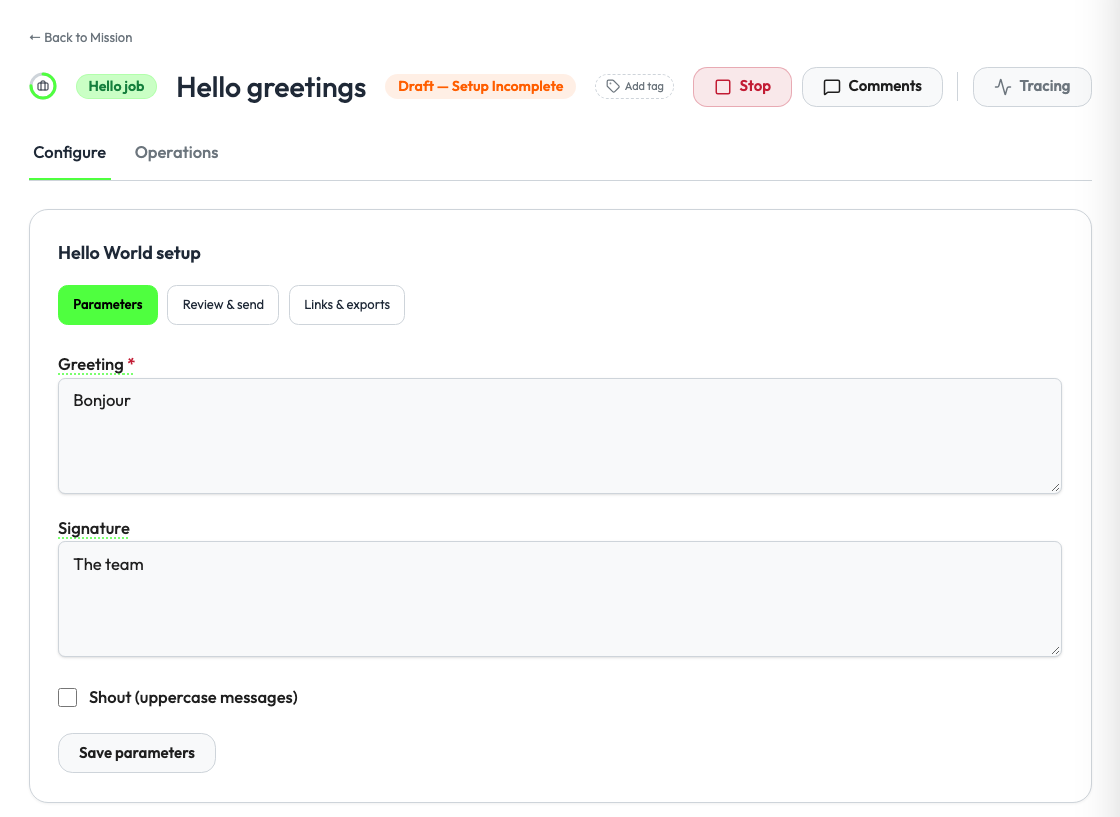
{
  "type": "Form",
  "id": "hello_world.greeting",
  "data": {
    "fields": [
      { "id": "greeting", "label": "Greeting", "type": "text", "required": true, "default": "Hello" },
      { "id": "shout", "label": "Shout", "type": "boolean", "default": false },
      { "id": "created_at", "label": "Created", "type": "date", "default": "2026-04-18", "read_only": true }
    ],
    "save_label": "Save parameters"
  },
  "bindings": {
    "save": { "action_id": "job.configure", "target_scope": "job", "payload_source": "component" }
  }
}
The fields use the field definitions of every form. The most useful keys here:
| Key | Use |
|---|---|
default | The current saved value. Send it on every load. |
required, read_only | Studio blocks an empty required field and locks a read-only one. |
description, placeholder | Help text. |
multiline | A text area for a text field. |
options | Choices of a select, as { "value", "label" } objects. A required select has no empty choice: it shows its placeholder until the operator chooses. |
options_source | Choices of a resource_ref, loaded from one of the agent's resources. |
depends_on | Shows the field only for some values of another field. |
Studio invokes the save binding with the values of the visible fields under value.
A Form is not only for settings. Three more uses:
- Display. A form of
read_onlyfields shows facts such as the creation date or the owner. - Trigger. The
savebinding can name any job-scoped action, andsave_labelnames the button. A Synthesis tab is aFormwith a promptselectand the label Generate synthesis. - Upload. A
filefield sends a file with the form:
{
  "id": "report_file",
  "label": "Insights report (.md)",
  "type": "file",
  "accept": ".md,text/markdown",
  "max_bytes": 1048576,
  "storage": "studio",
  "required": true
}
Studio stores the file, keeps the save button disabled during the upload, and sends the agent a stored-file reference in place of the bytes. A file field must be a top-level field of the form.
ResourceList: rows the operator adds and removes
The Participants tab. Studio lists the rows of one agent resource and offers the operations you bind.
{
  "type": "ResourceList",
  "id": "campaign.contacts",
  "data": {
    "resource_id": "campaign_contacts",
    "columns": [{ "id": "name", "label": "Name" }, { "id": "email", "label": "Email" }],
    "labels": { "create": "Enrol contact", "import": "Import contacts", "delete": "Remove", "empty": "No participants yet." },
    "create_fields": [
      {
        "id": "contact_id",
        "label": "Workspace contact",
        "type": "resource_ref",
        "required": true,
        "options_source": { "type": "resource", "resource": "contacts", "value_field": "id", "label_field": "full_name" }
      }
    ],
    "import_fields": [{ "id": "csv", "label": "New contacts (CSV)", "type": "text", "multiline": true, "required": true }]
  },
  "bindings": {
    "create": { "action_id": "campaign.contacts.create", "target_scope": "job", "payload_source": "component" },
    "delete": { "action_id": "campaign.contacts.delete", "target_scope": "job", "payload_source": "component" },
    "import": { "action_id": "campaign.contacts.import", "target_scope": "job", "payload_source": "component" }
  }
}
- Rows come from
resource.<resource_id>.list, called with the job's context so the agent can scope the list to the job. Each row needs a stringid. - Each binding is optional. Without a
deletebinding there is no remove button. createandimportreceive the field values.deletereceives{"id": "<row id>"}.- Without
options_source, aresource_reffield is a plain text box. - An optional
create_selector(field_id,search_label,columns) turns the picker into a searchable table.
TemplateComposer: a prompt or template editor
The Scenario tab. It shows a version picker, one text block per slot, insertable placeholders, validation lines and a rendered Markdown preview.
{
  "type": "TemplateComposer",
  "id": "scenario.composer",
  "data": {
    "nodes": [{ "id": "body", "label": "Scenario" }],
    "slots": [{ "id": "body", "label": "Scenario", "value": "Hello {{first_name}}", "multiline": true }],
    "tokens": [{ "id": "first_name", "label": "First name", "insertion": "{{first_name}}", "group": "Contact" }],
    "versions": [{ "id": "3", "label": "Version 3 · latest" }],
    "selected_node_id": "body",
    "selected_version_id": "3",
    "validation": [{ "id": "scenario", "label": "Scenario ready", "status": "ok" }],
    "preview": "Hello **Ada**"
  },
  "bindings": {
    "save": { "action_id": "campaign.scenario.save", "target_scope": "job", "payload_source": "component" }
  }
}
nodes, slots, tokens and versions are required lists (they can be empty). save receives {"value": {"selected_node_id", "selected_version_id", "slots"}}, where slots maps each slot id to its text.
While the operator types, Studio reloads the surface with a read-only event so the agent can refresh validation and preview:
{
  "supported_schema_versions": ["1", "2"],
  "event": { "document_id": "…", "revision": "…", "component_id": "scenario.composer", "type": "validation.requested", "value": {} },
  "local_state": { "slots": { "body": "Hello {{first_name}}, welcome" } }
}
Studio sends the event types validation.requested (after a typing pause) and selection.changed (another node or version). Ignore a type you do not know. local_state holds the unsaved draft and is limited to 64 KiB. Build the answer from it, but do not save anything on a surface load, and keep the same revision.
Review: the checklist and the main button
The Review & launch tab. The component takes no data and no bindings:
{ "type": "Review", "id": "campaign.review", "data": {}, "bindings": {} }
Studio fills it with the document's readiness list and puts the primary_action button under it.
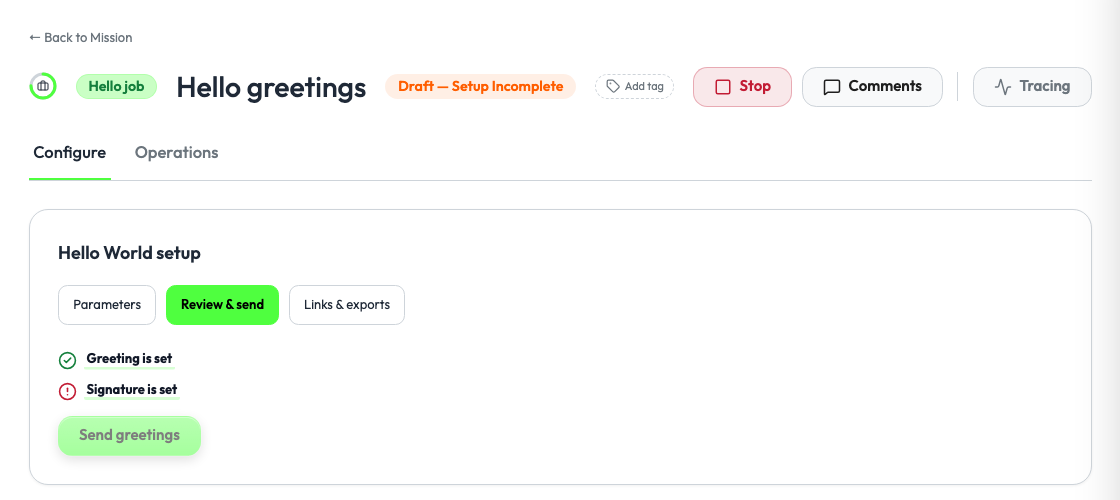
"readiness": [
  { "id": "greeting", "label": "Greeting is set", "status": "ok", "section_id": "parameters" },
  { "id": "signature", "label": "Signature is set", "status": "blocked", "section_id": "parameters" }
],
"primary_action": {
  "id": "greet",
  "label": "Send greetings",
  "status": "enabled",
  "binding": { "action_id": "job.greet", "target_scope": "job", "payload_source": "document" }
}
- A readiness
statusisokorblocked. An optionalsection_idturns the line into a link to that section, and must name a section of the document. - Studio enables the primary action only when its
statusisenabledand no readiness item isblocked. - With a
Reviewsection, the button shows only there. Without one, it shows under every section. - Readiness is display only. It authorizes nothing, so check it again in the action.
Table: read-only rows, links and downloads
The Links & exports tab. Table needs schema version "2" and its bindings must be empty.
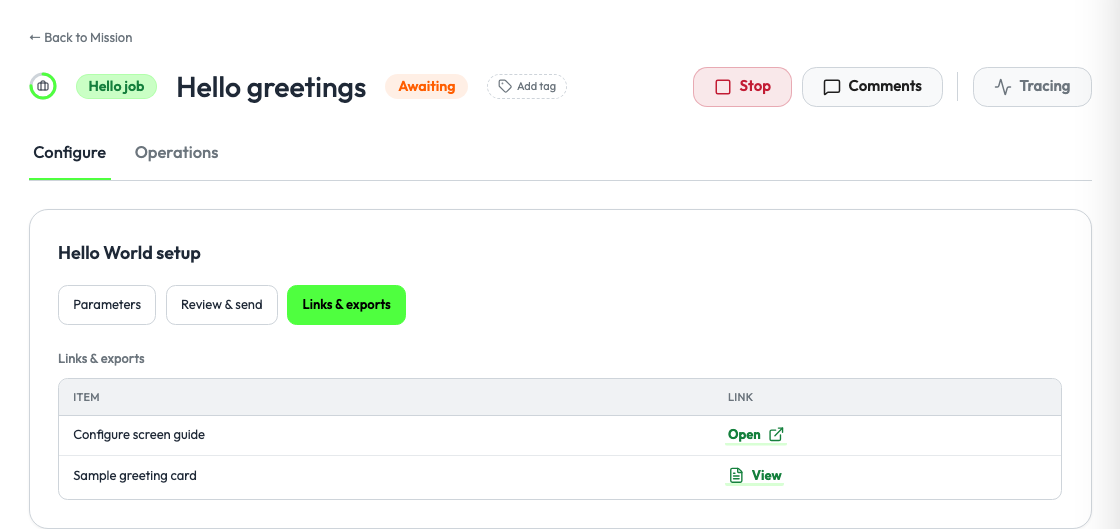
{
  "type": "Table",
  "id": "hello_world.exports",
  "bindings": {},
  "data": {
    "title": "Links & exports",
    "empty_label": "Nothing to export yet.",
    "columns": [{ "id": "item", "label": "Item" }, { "id": "link", "label": "Link" }],
    "rows": [
      { "item": "Registration link", "link": { "label": "Open", "href": "https://example.com/register" } },
      { "item": "Invite links (CSV)", "link": { "label": "Download", "artifact": { "id": "invites:csv", "type": "invite_links_csv" } } }
    ]
  }
}
- A cell is a string, a number, a boolean,
null, or a link object with alabel. hrefmust be an absolutehttporhttpsURL.artifactis a flat object with a stringid. Studio sends it back unchanged to the agent'sartifact.getaction and shows or downloads the content. Declareartifact.getwithmutating=False.- Limits: 20 columns and 500 rows. Keys in a row that match no column are dropped.
Design the screen over the life of the job
The document is rebuilt on every load, so the screen can follow the state of the job:
- Before the domain object exists. A job can start empty. Return one
editablesection that creates or selects the object (for example, a campaign), set the other sections tohidden, and add oneblockedreadiness line that says what to do first. - During setup. All setup sections are
editable. The primary action is the launch,disableduntil every readiness item isok. - While the job runs. Lock the setup sections, show the result sections, and change the primary action, for example to Close campaign with a
confirmation. - After the job ends. Set
primary_actiontonulland the sections toread_only.
Return the job's job_state from the actions that change cases, such as the launch, so Studio updates the Operations view at once.
Step 4: handle saves and revisions
Studio adds the document's revision to every action input. The agent receives, for a Form save:
{ "revision": "3", "value": { "greeting": "Bonjour", "shout": false } }
The primary action receives only {"revision": "3"}.
The revision protects two operators from overwriting each other. Compare it first, and answer a stale one with a configurator.conflict effect:
def configure(job_id, action_input):
    config = job_config(job_id)
    if action_input.get("revision") != config["revision"]:
        return {
            "status": "error",
            "effects": [{
                "type": "configurator.conflict",
                "message": "Configurator changed; reload required",
                "current_revision": config["revision"],
            }],
        }
    # validate, save, and move the revision
    ...
    return {"status": "ok", "effects": [{"type": "job.configured", "job_id": job_id}]}
On a conflict, Studio reloads the document and keeps the operator's unsaved input so they can apply it again.
For every other refusal, return status: "error" with one effect that carries a message, for example {"type": "campaign.configure.failed", "message": "End date must be in the future"}. Check the section's policy and the readiness again before you write: a locked section in Studio does not stop a direct call.
Rules for the revision:
- It is opaque to Studio, which only compares it for equality. A counter or a hash of the saved state both work.
- It must change when saved state changes, and only then. Display-only data and read-only events must not change it.
- Do not put a
revisionkey in a component payload: Studio adds it.
Studio also sends an idempotency_key with every Configurator action and never runs two identical actions at the same time. If the outcome of a call is uncertain, Studio retries with the same key: return the original result instead of applying the change twice.
Step 5: label the job in lists (optional)
The document is only loaded on the job page. To show your vocabulary in job lists and in the title row, add display to the job snapshot of any job_state you return:
"job": {
  "id": "…",
  "status": "active",
  "display": {
    "entity_label": "Aidan campaign",
    "state_label": "Draft — setup incomplete",
    "primary_action_label": "Continue setup"
  }
}
Each value is a string of at most 120 characters. Studio replaces the labels on each job_state it receives, so return a job_state from the actions that change them. Studio falls back to its own vocabulary when the job's status has moved on since the snapshot.
Schema versions
Studio lists the versions it supports in input.supported_schema_versions. Answer at the highest version you both support.
| Version | Catalog |
|---|---|
"1" | Form, ResourceList, TemplateComposer, Review |
"2" | Version 1 plus Table |
SCHEMA_VERSIONS = ("1", "2")

supported = surface_input.get("supported_schema_versions") or ["1"]
version = next((v for v in reversed(SCHEMA_VERSIONS) if v in supported), None)
if version is None:
    return {
        "type": "ConfiguratorError",
        "code": "unsupported_schema",
        "message": "Studio and agent do not share a Configurator schema version.",
        "supported_schema_versions": list(SCHEMA_VERSIONS),
    }
Leave Table sections out of a version 1 document: Studio refuses an unknown component type.
Rules that make Studio refuse a document
Studio rejects the whole document when one of these is true:
- A required root field is missing, or
schema_versionis not supported. - A section id or a component id is used twice.
- A
policy, a componenttype, a readinessstatusor a primary actionstatusis not in the lists above. - A binding names an undeclared action, a
target_scopeother thanjob, or an unknownpayload_source. - A
Tablehas a binding, more than 20 columns or more than 500 rows. - A readiness
section_idnames no section. - Any key in the document, compared without case and punctuation, is one of
html,script,iframe,src,style,css,import,remoteimport,expression,expressionlanguage,targetid,jobid,missionid,caseid,stepid. So a row or a field must not carry ajob_idkey. Theimportbinding and label of aResourceListare the only exception. - A URL value starts with
javascript:,data:orvbscript:.
The Hello World test test_configurator_sections_readiness_and_primary_action shows a small check for the forbidden keys that you can copy into your own tests.
Checklist
-
job.configuratoris insurfaces, and every bound action is inactions, job-scoped. - The surface handler returns the document at a negotiated
schema_version. - Every action compares
revisionfirst and returnsconfigurator.conflictwhen it is stale. - Every action validates its input and the readiness again.
- A surface load never writes state.
- The workspace accepted the agent grant again after you added actions.
Troubleshooting
| Symptom | Cause |
|---|---|
| No Configure tab | The surface is not in the registration, the agent was not registered again, or the user cannot manage the mission. |
| Configurator contract error | The document broke a rule above. Run your document through the checks in your tests. |
| The primary button stays disabled | Its status is disabled or a readiness item is blocked. |
| A picker shows a text box | The resource_ref field has no options_source. |
| The screen is locked with an offline message | The agent server is down or paused. Configure works again once it reconnects. |
| An action fails with a scope error | The bound action is not job-scoped. |
Related
- Job and mission analytics: add a dashboard to the job page with the
job.analyticssurface.
Reference
- Supervaizer v2 guide: registration, surfaces, actions and
job_state. - Hello World example:
agent_configurator.pyandtests/test_configurator.py.